
Getting started with Quely Spaces
Quely, helps your team bring work and context into one focused Space. This guide shows you how to create a Space, add Units, use the Queue, work with Orbit and Lenses, and collaborate with your team.
Step 1: Sign in to Quely. From Home, you can ask Orbit about work in all Spaces that you can access.
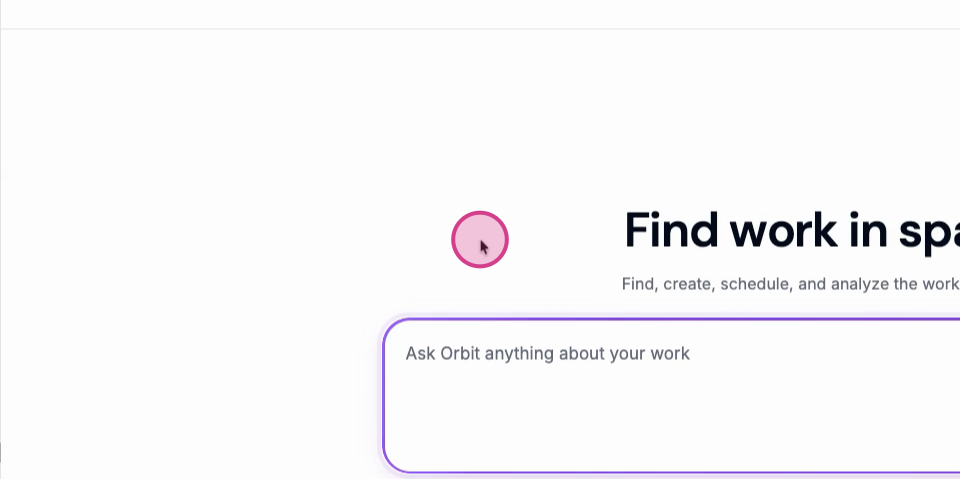
Step 2: Select Spaces in the navigation bar. You can see the Spaces that you created or joined.

Step 3: Select New to create a Space.
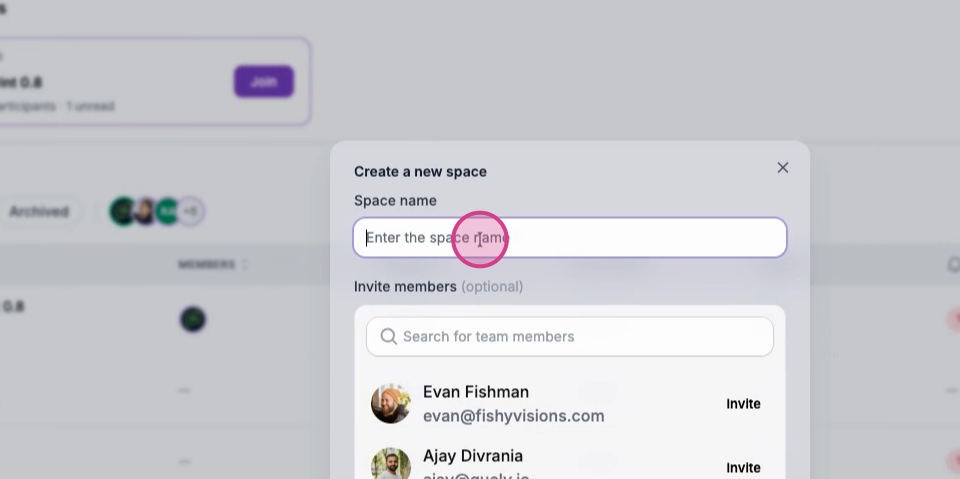
Step 4: Enter the Space name. To invite team members, search for their names and select Invite.
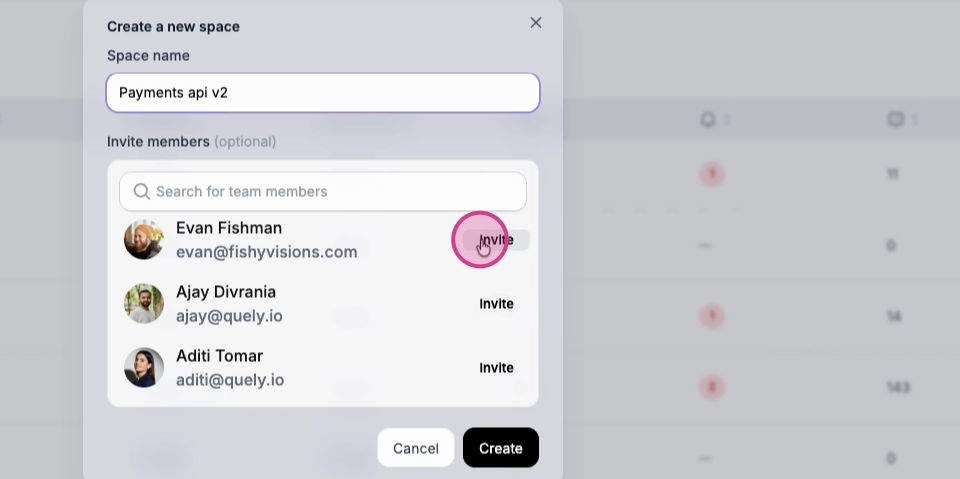
Step 5: Select Create. Quely sends the invitations and opens the new Space.
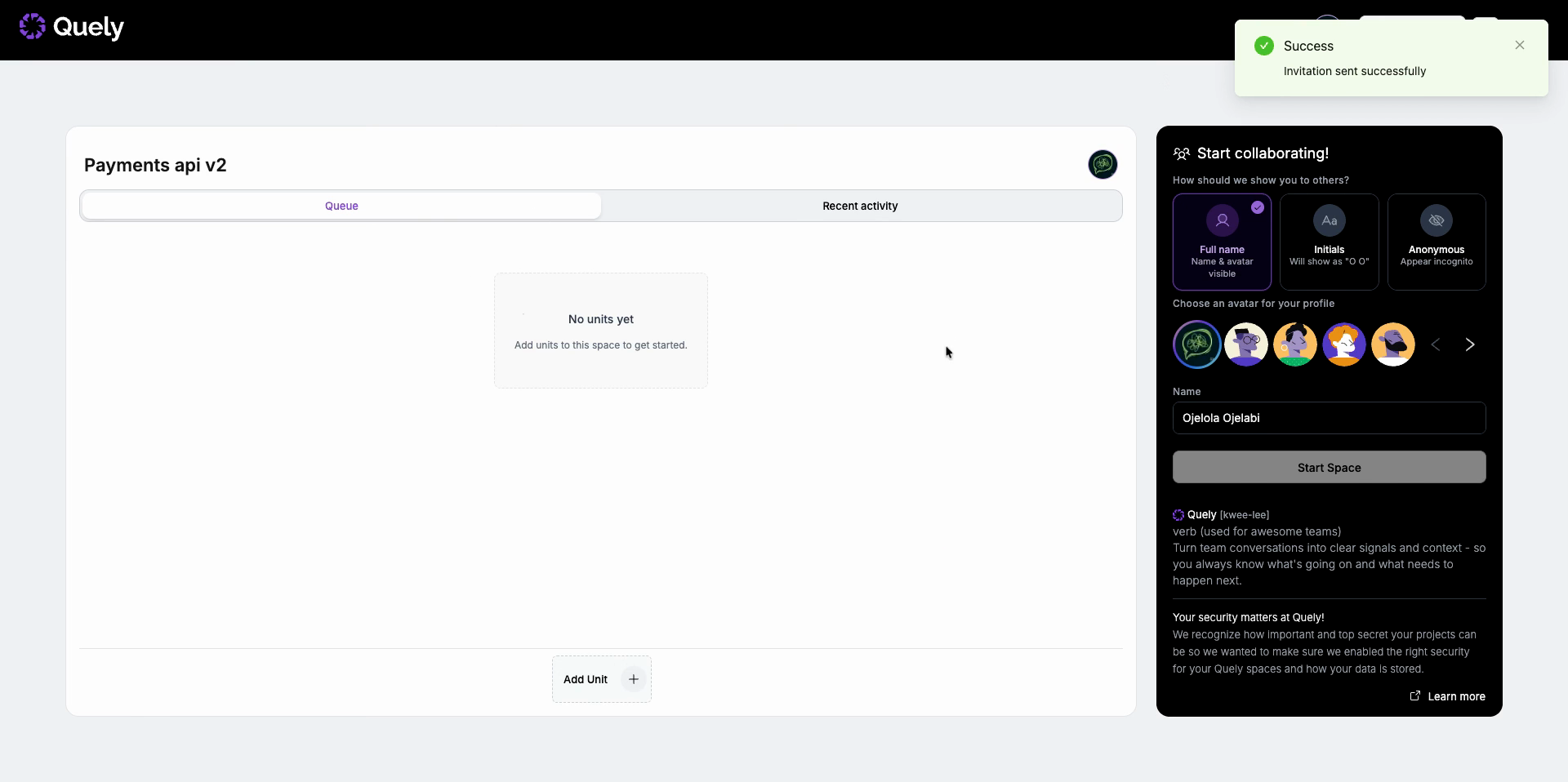
Step 6: Select Add Unit. Choose Work, Context, or Group.
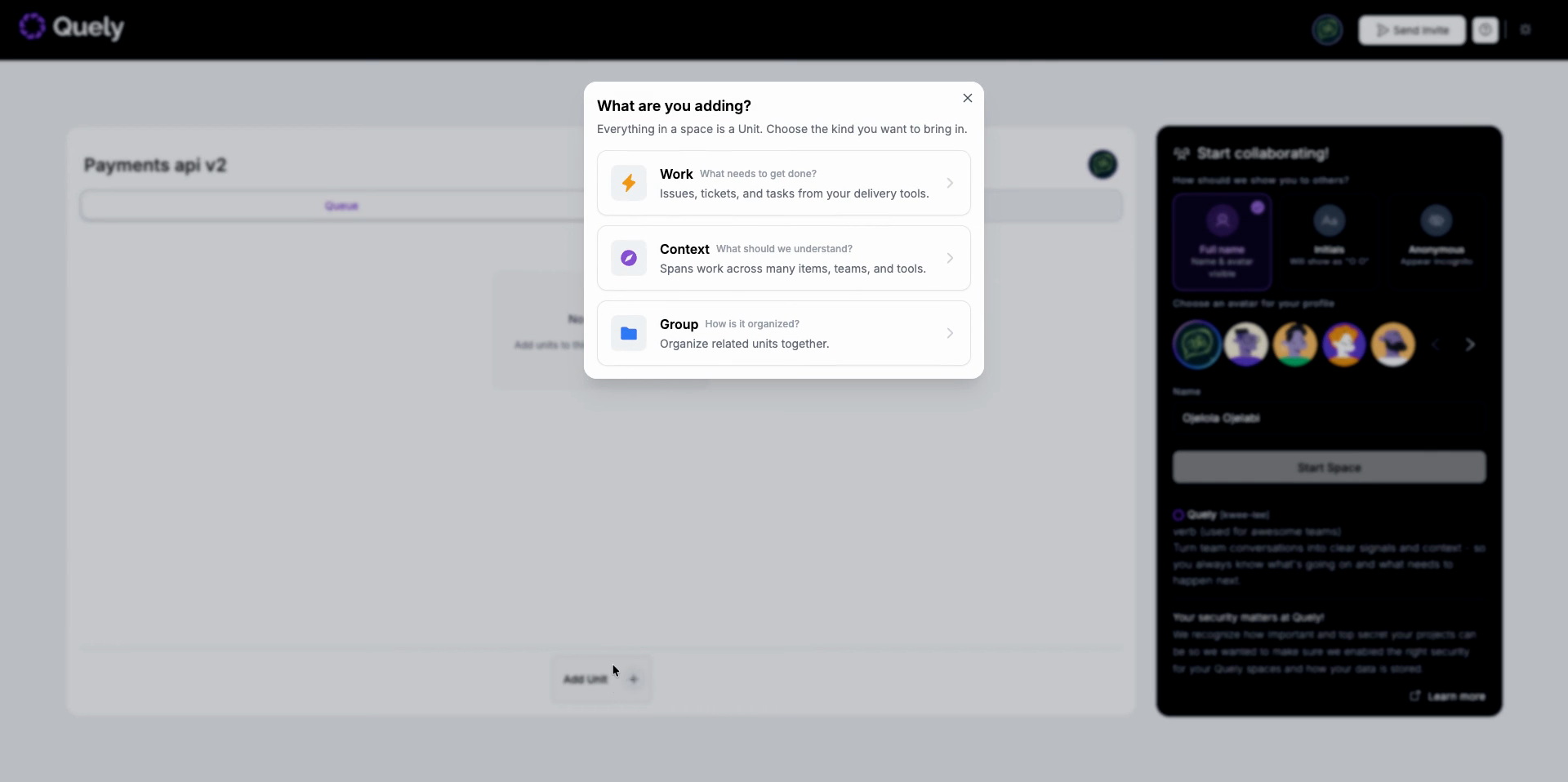
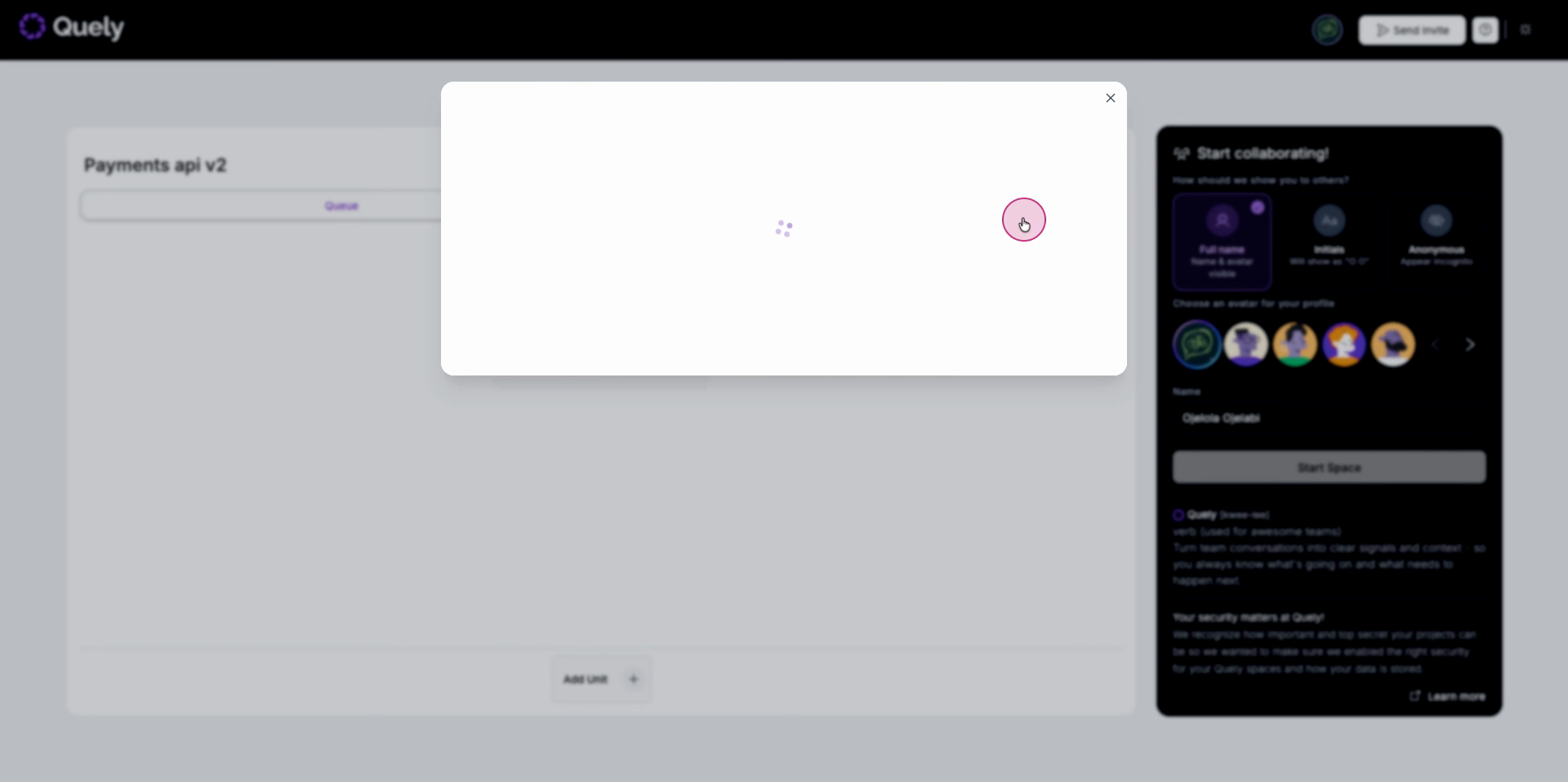
Step 7: Choose Work to add tasks, tickets, or issues from a connected delivery tool. Select the provider and the account, project, or other source that contains the work.
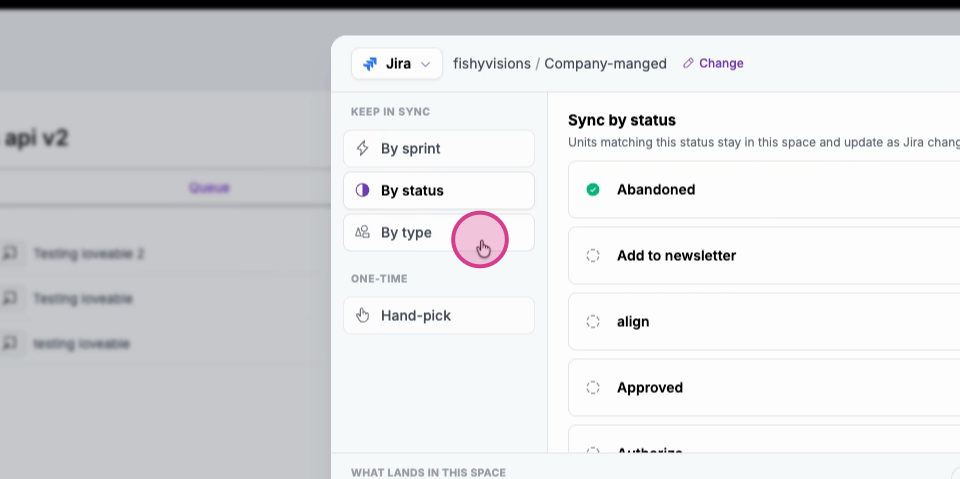
Step 8: Choose how to add the items. For Jira, you can keep items in sync by sprint, status, or type. You can also use Hand-pick for a one-time selection.
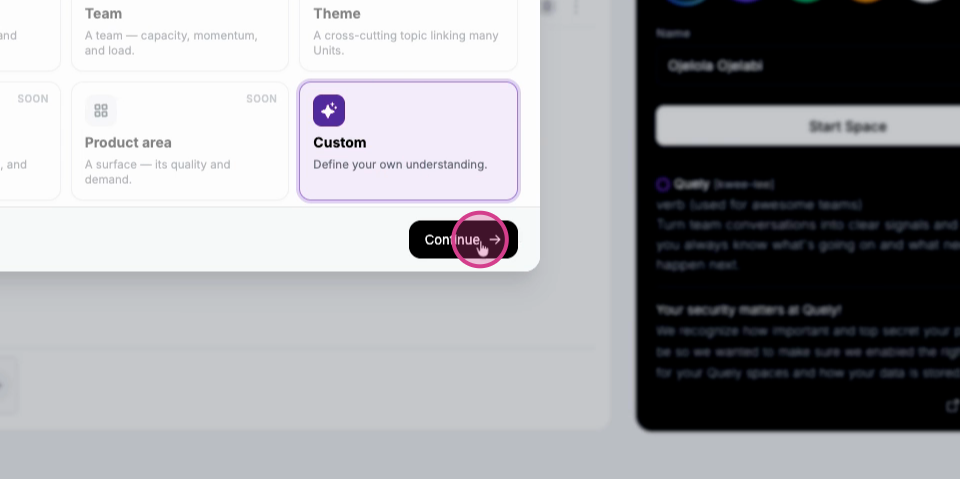
Step 9: To add a Context Unit, select Context and then select Custom. The other Context templates are marked Soon.
Step 10: In Connect, choose the sources that Orbit must reference. Select the focus areas and time range, add any necessary instructions, and select Add to space.
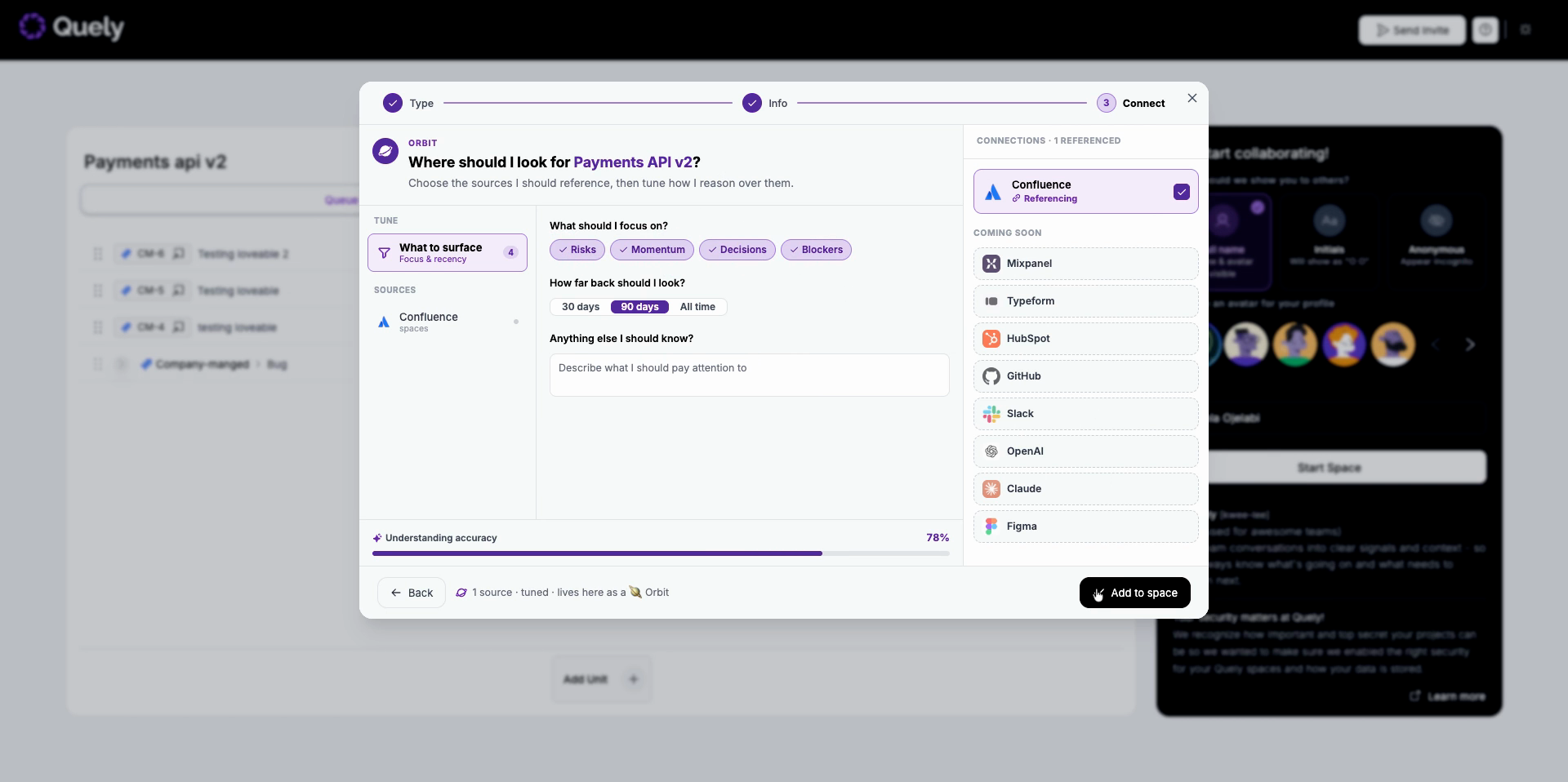
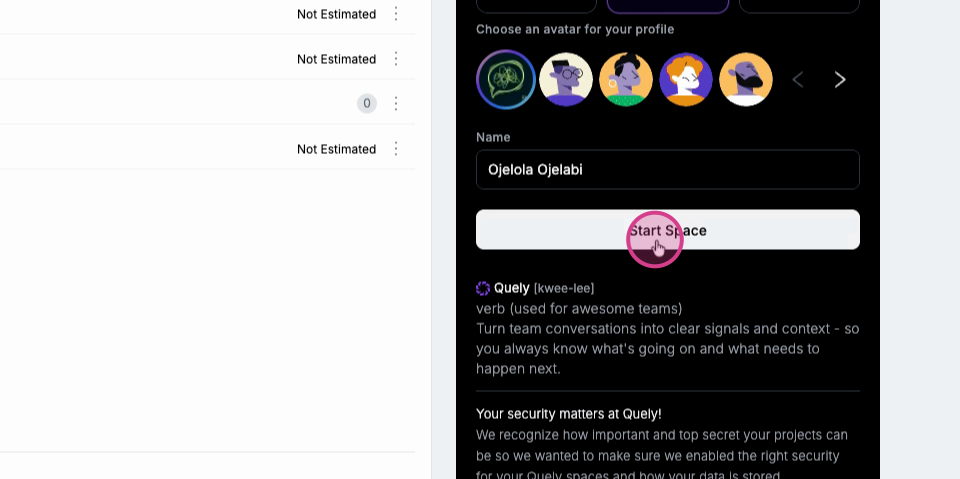
Step 11: Choose how other members see you. Select a display option and an avatar, confirm your name, and select Start Space.
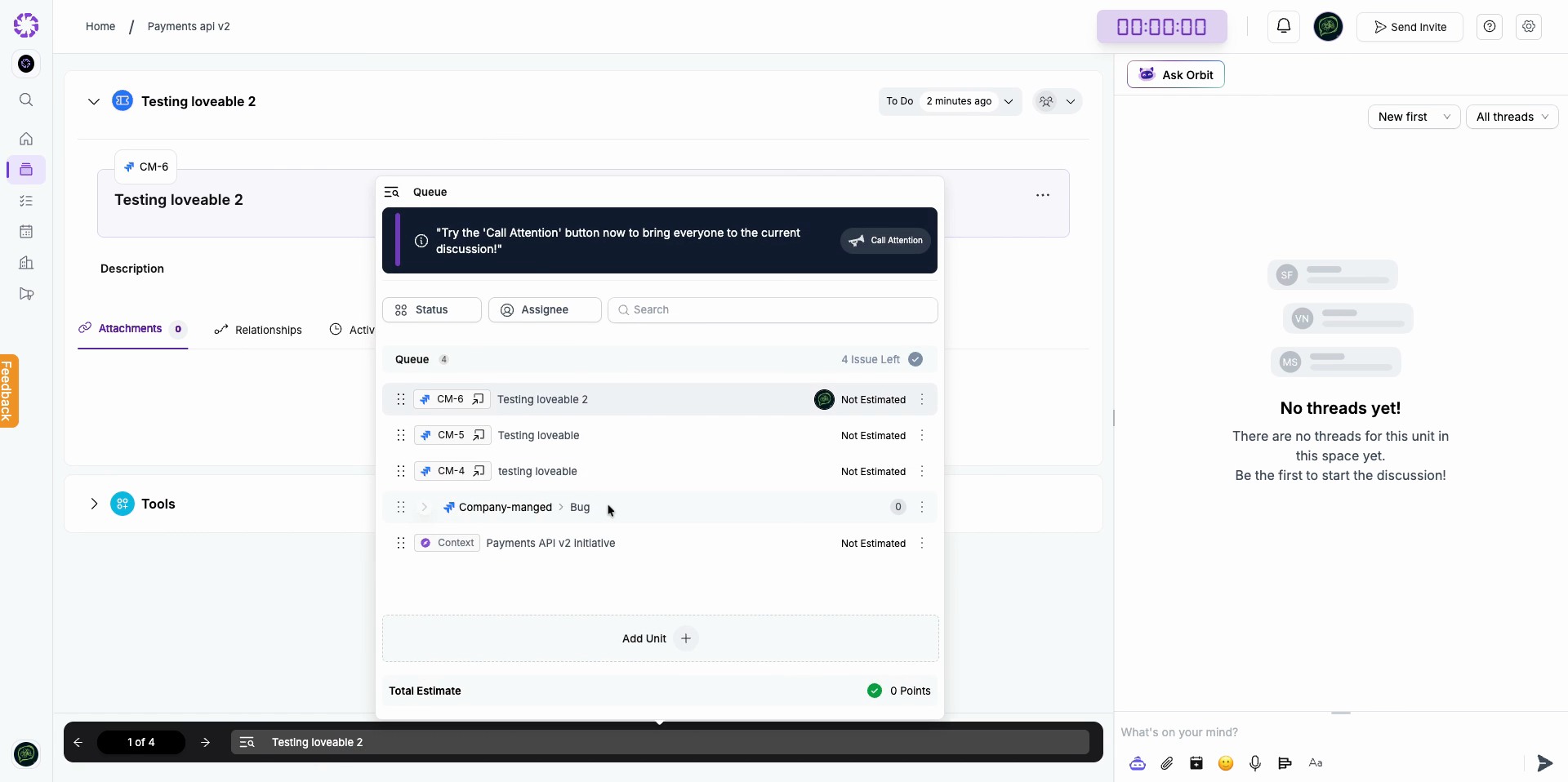
Step 12: Open the Queue to see the ordered list of Units in the Space. Work Units show their source and identifier. Context Units have a Context label.
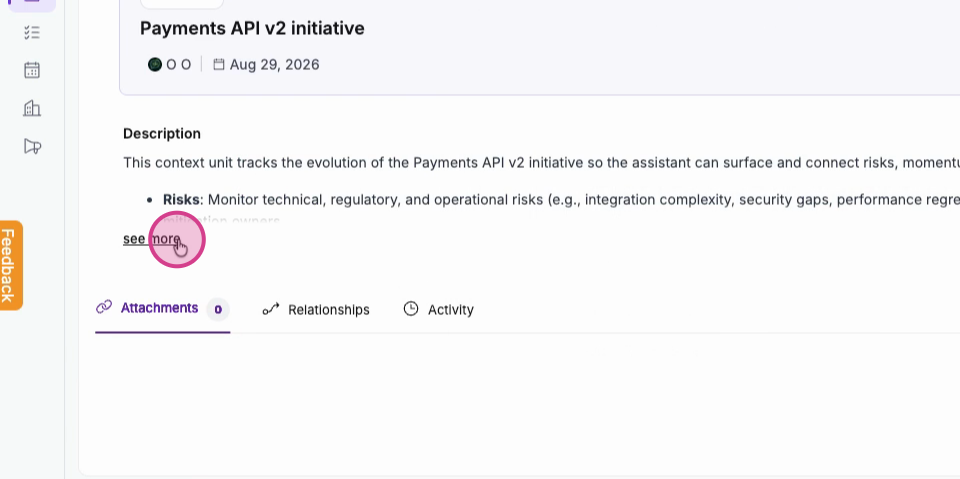
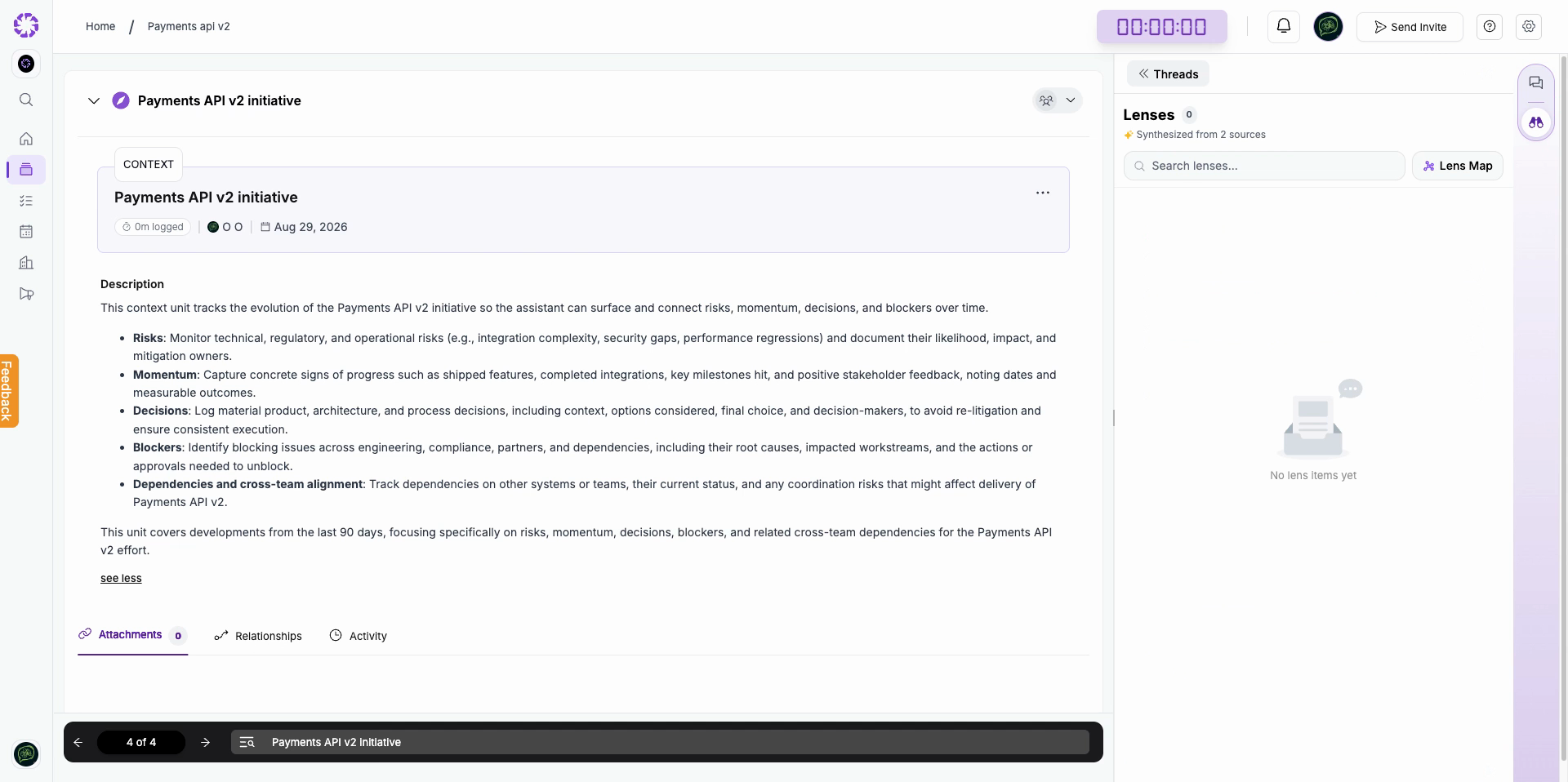
Step 13: Open a Unit to see its description, attachments, relationships, and activity.
Step 14: Open Tools. Select the tools that the Unit needs, such as Time Tracking, Estimations, Diagram, or Document.
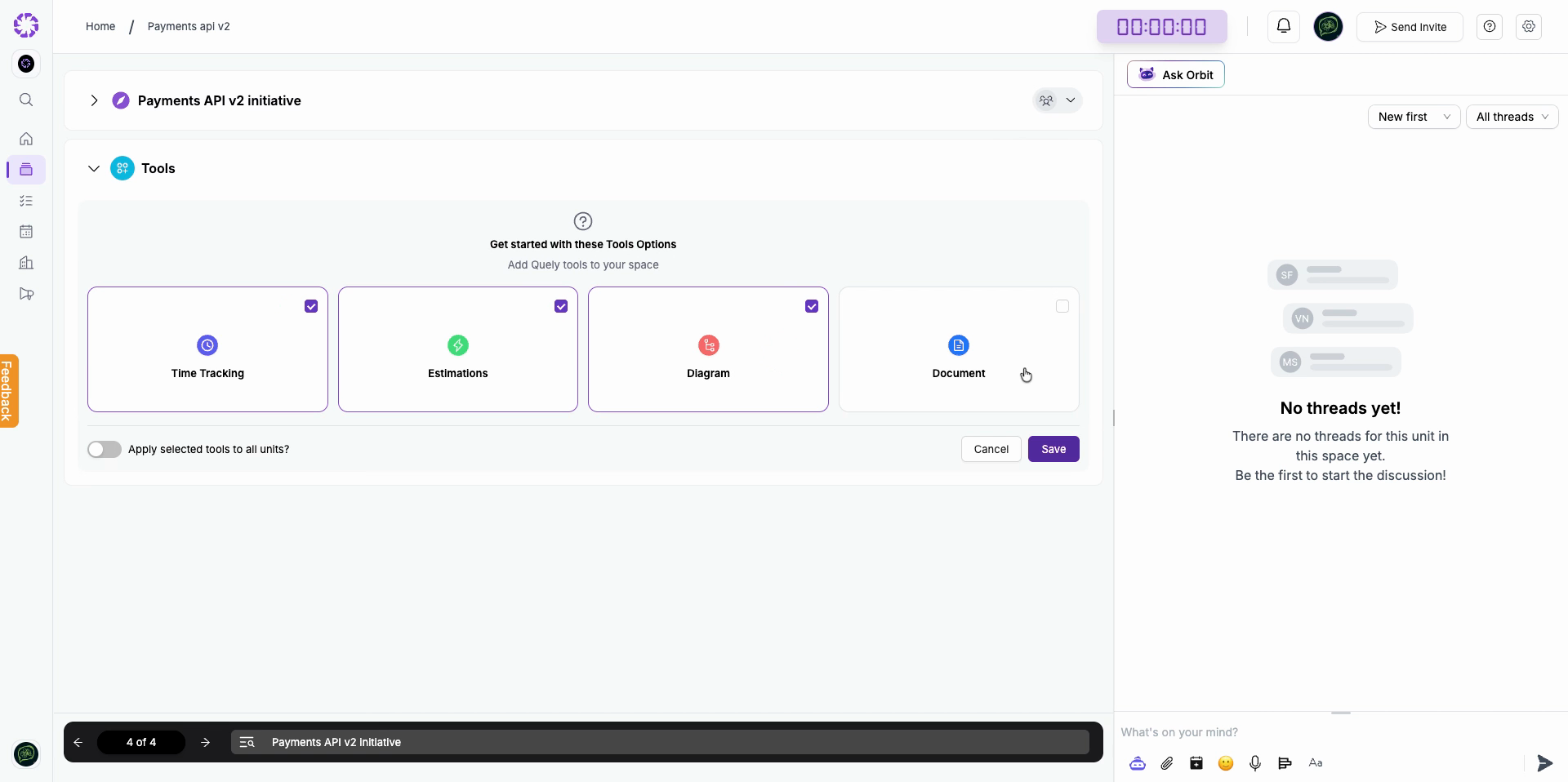
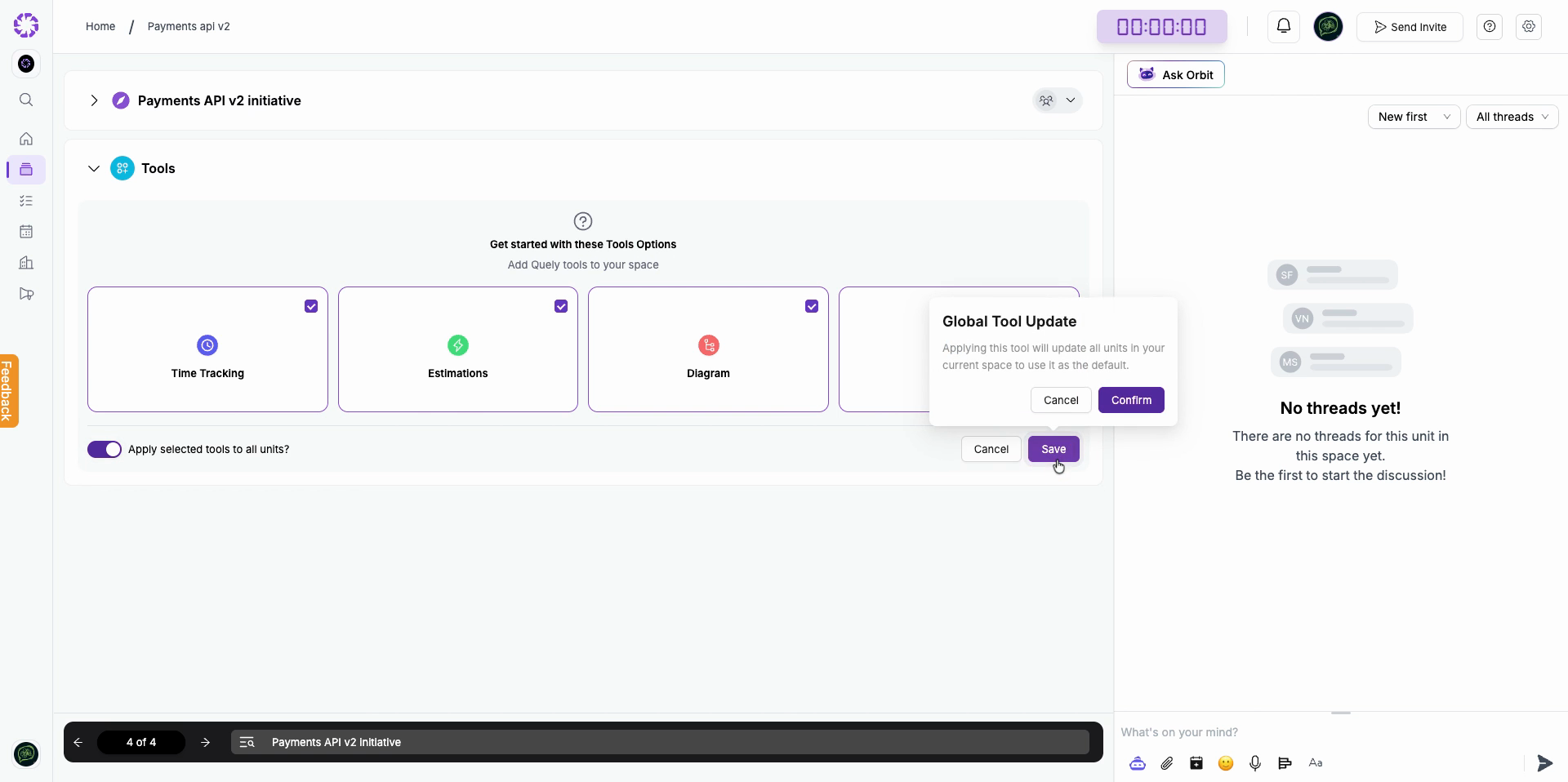
Step 15: To use the same tools for all Units in the Space, turn on Apply selected tools to all units? Select Save, and then select Confirm.
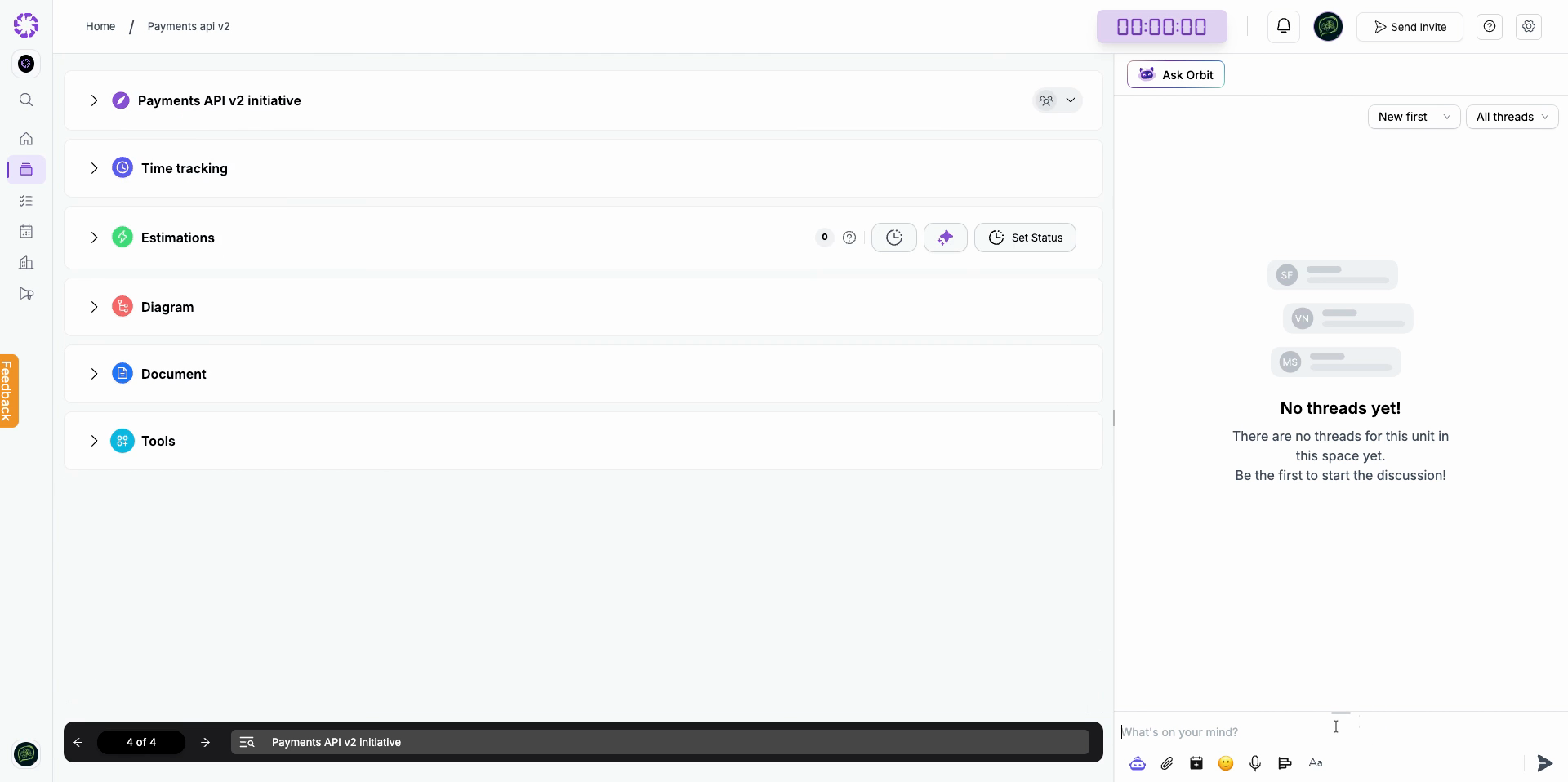
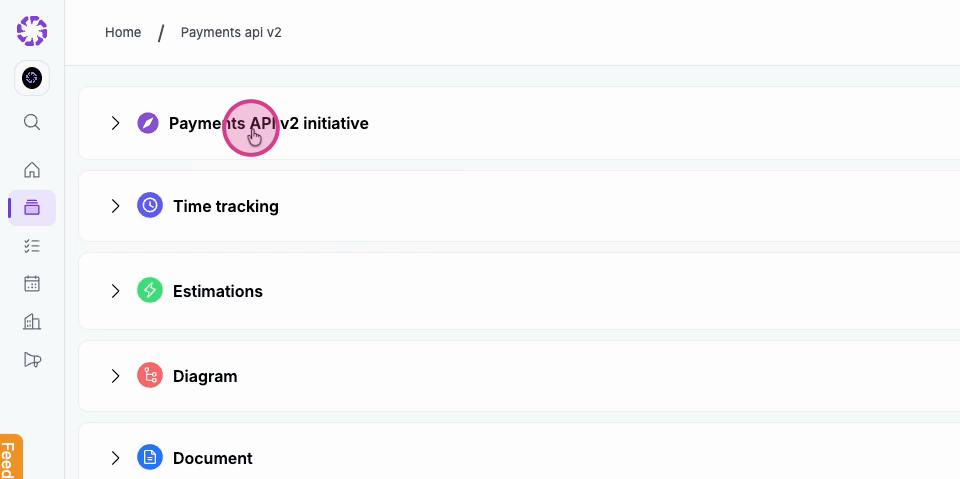
Step 16: The selected tools now appear as sections in the Unit. Expand a section when you need to use it.
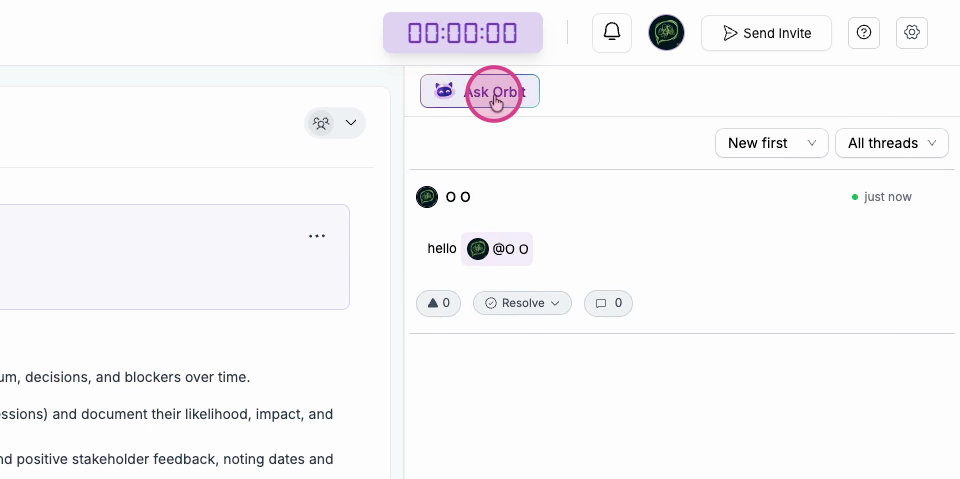
Step 17: Use Threads for team discussion. Select Ask Orbit to start a private Orbit chat about the open Unit.
Step 18: In Orbit's side rail, select Lenses. Lenses show shared insights that Orbit synthesizes from the Unit's sources, such as decisions, actions, risks, opportunities, open questions, and next steps.
More things you can do
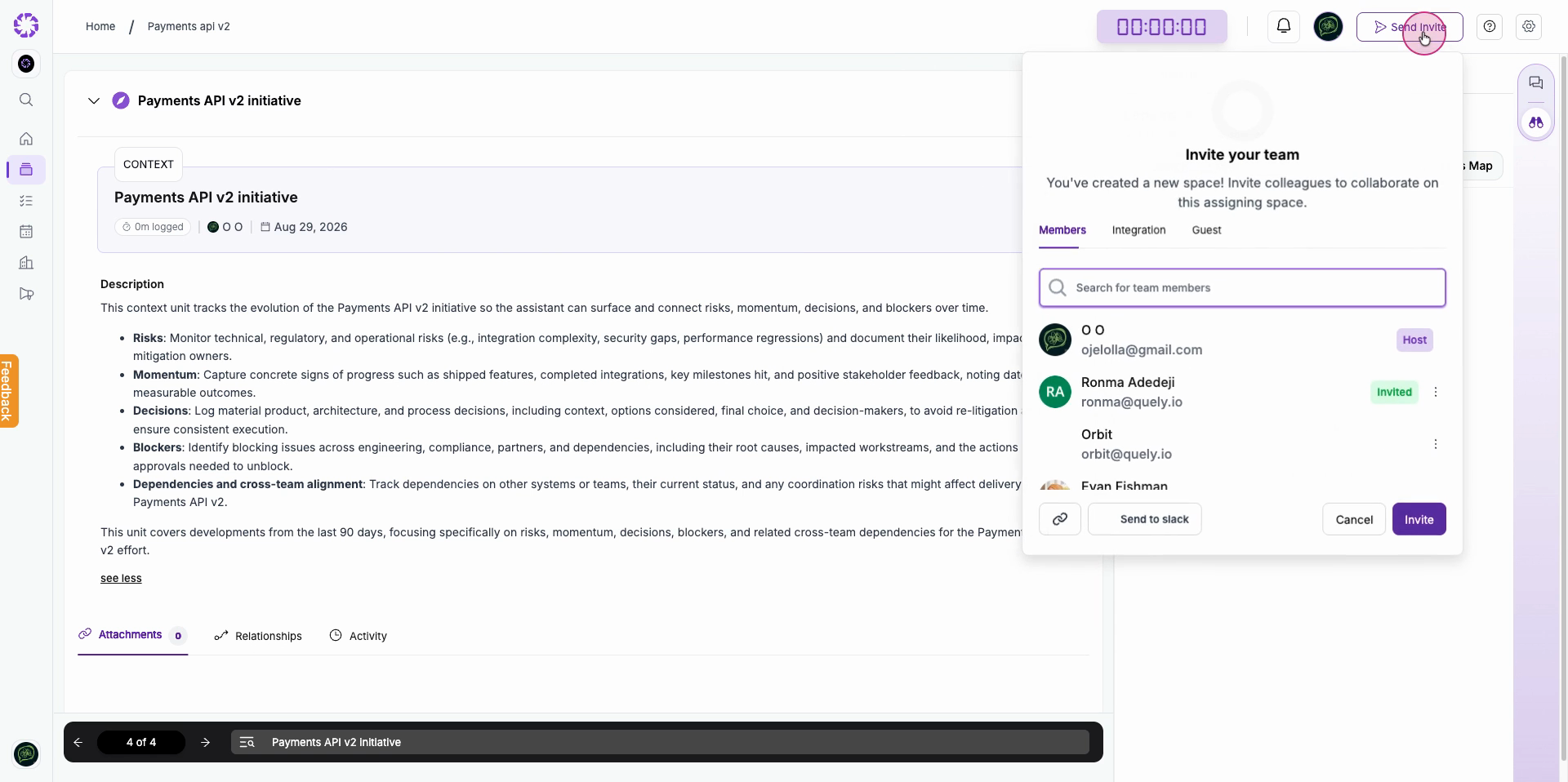
Step 1: Select Send Invite to add members, integrations, or guests to the Space.
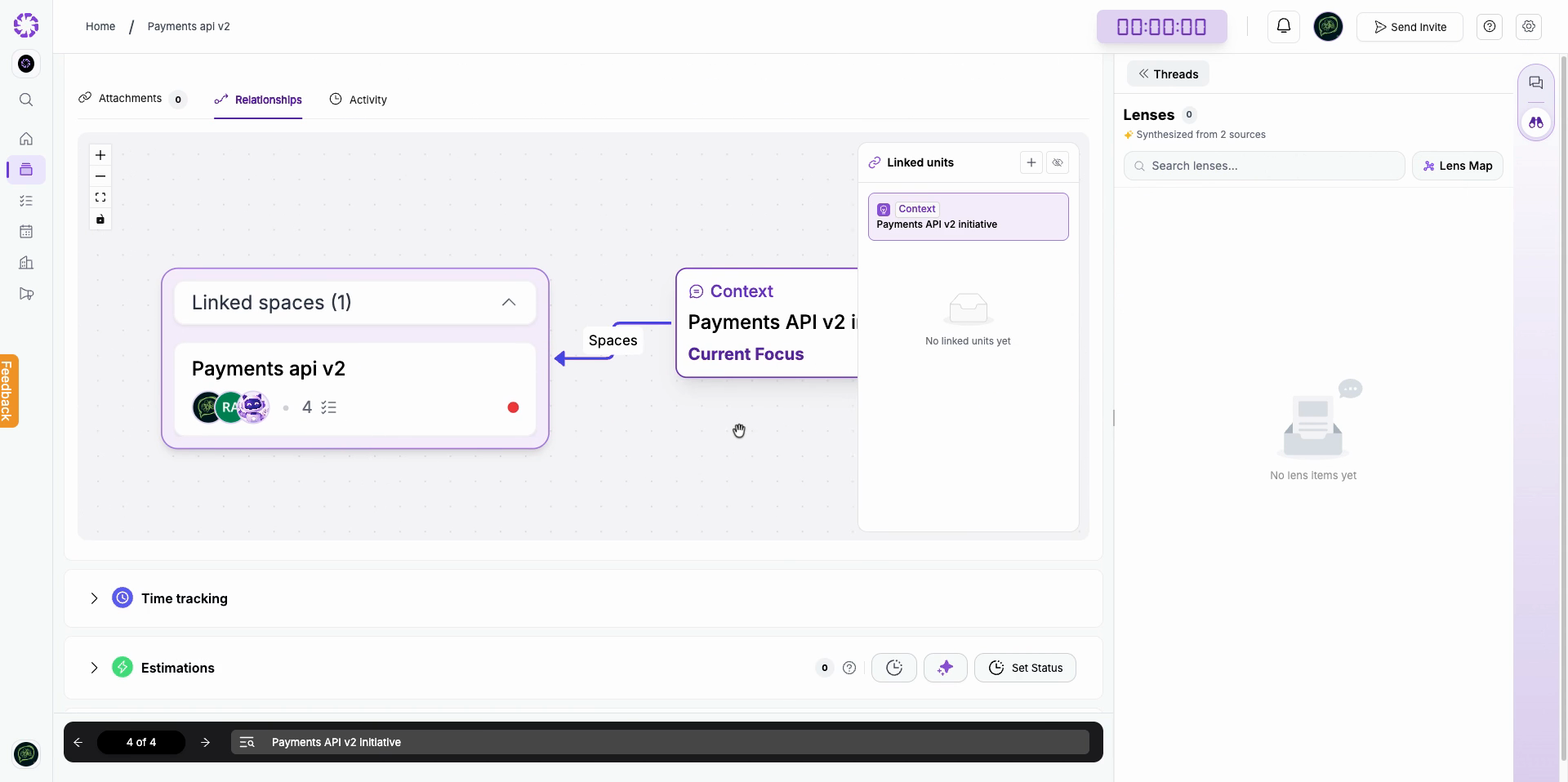
Step 2: Open Relationships to view linked Spaces and Units. You can also add a linked Unit.
Step 3: Open Activity to review the Unit's activity and recorded time.
Step 4: Use the Thread composer to write messages. You can also mention teammates, attach files, schedule a meeting, add an emoji, record an audio note, or format the text.
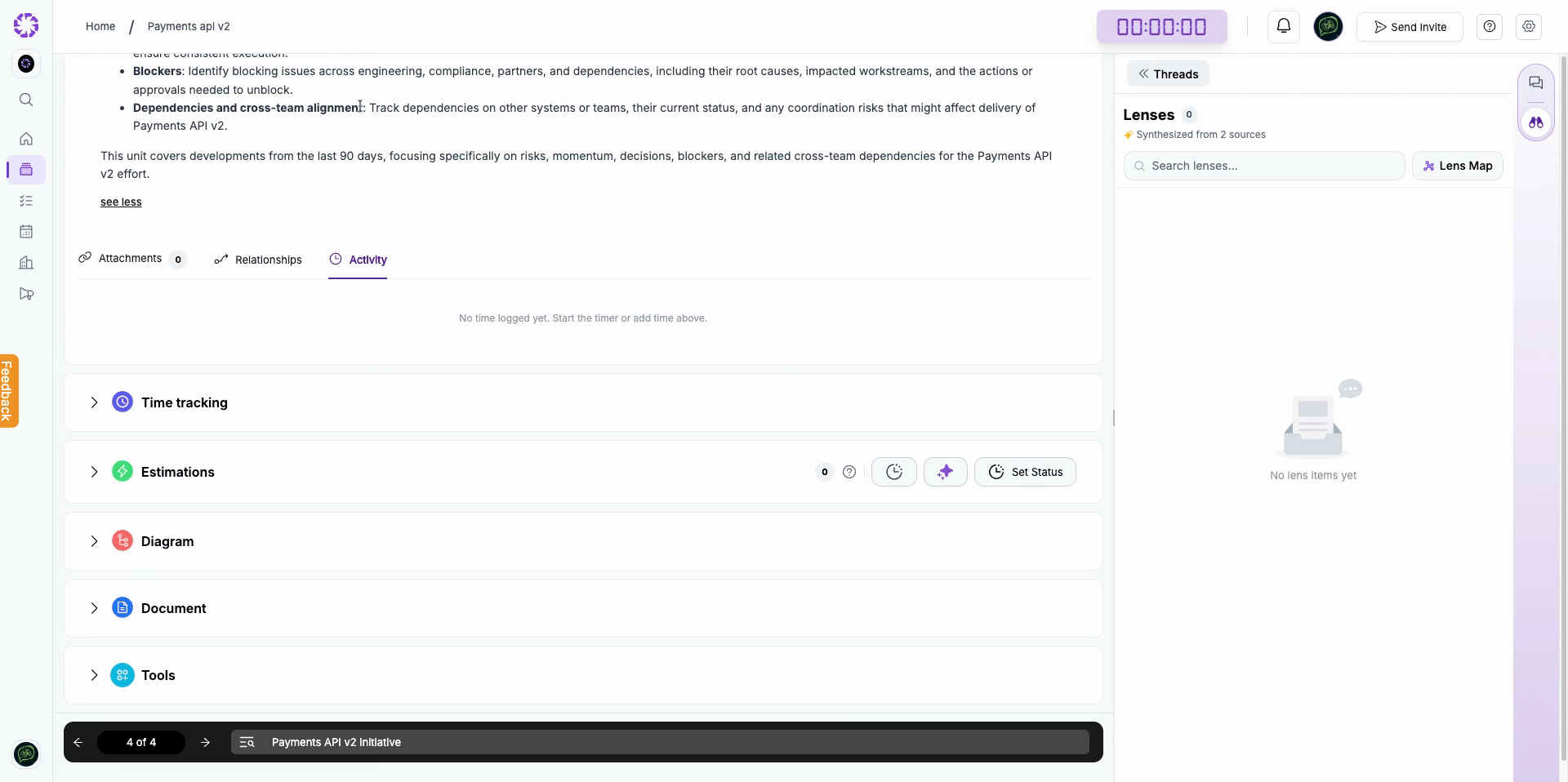
Step 5: Select the Ask AI control in the Thread composer to use Orbit.

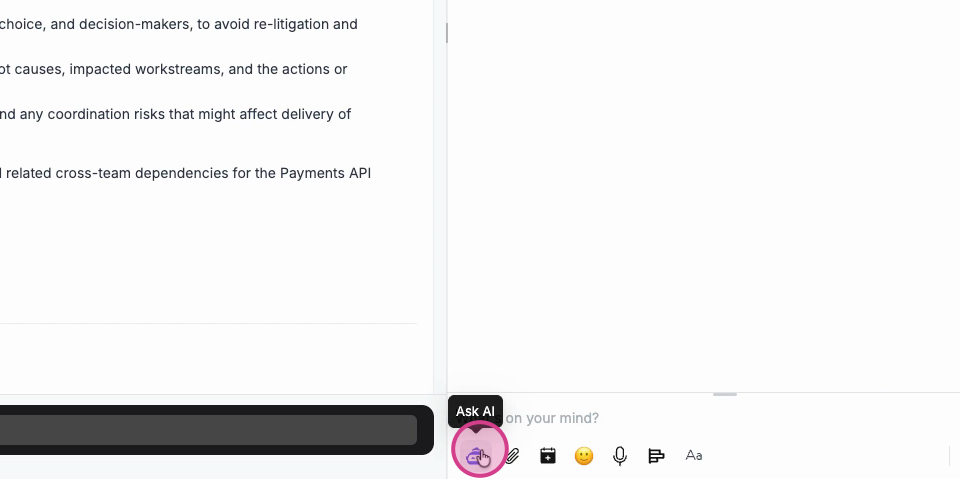
Step 6: When you schedule a meeting from a Unit, add the participants and review the available time slots.
Step 7: Choose the meeting date, start time, end time, and duration.
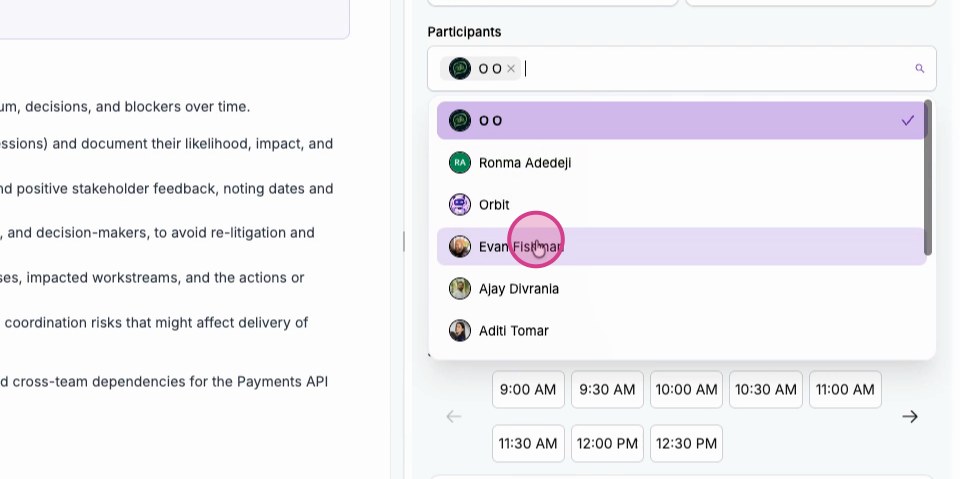
Step 8: Turn on Orbit Recording if you want Orbit to record the meeting. Follow your organization's recording and consent requirements. Then select Schedule.
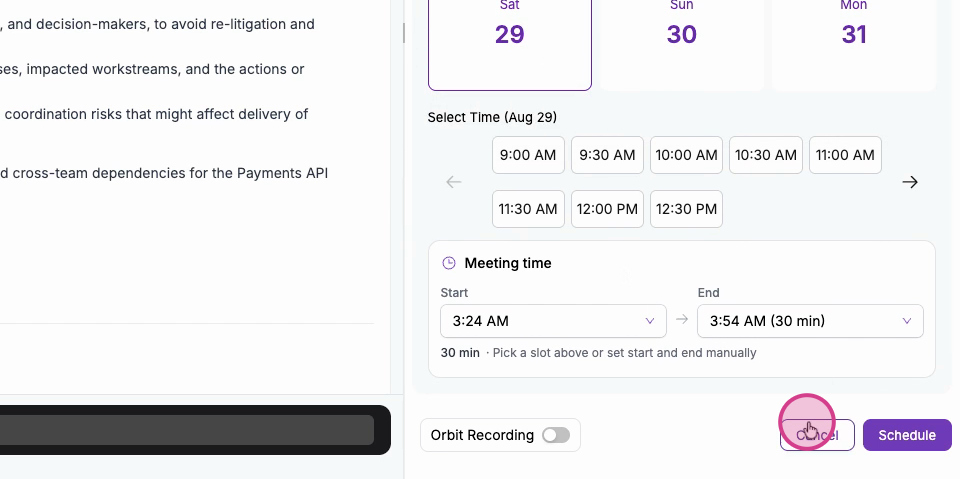
A Space is a focused intelligence environment. Its Queue contains Work Units and Context Units. Orbit helps you understand the open Unit, and Lenses share synthesized insights with the team.
Updated on: 02/09/2026
Thank you!